
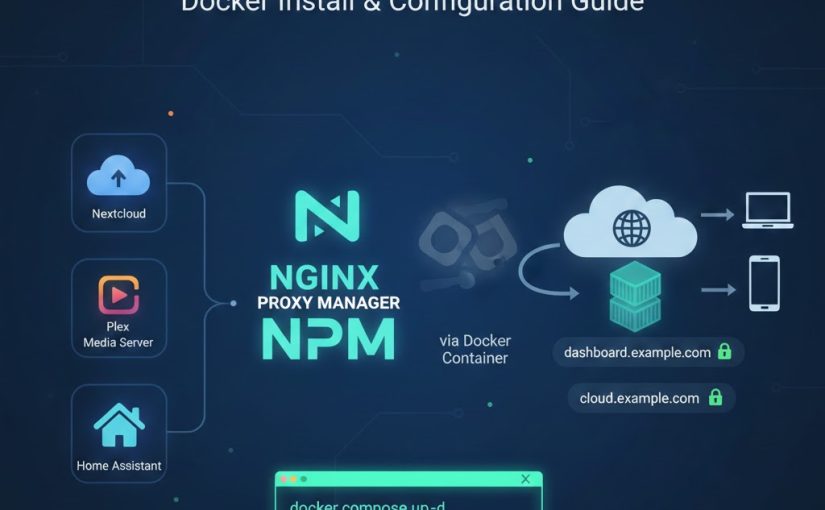
In today’s self-hosting world, managing multiple web services (like Nextcloud, Plex, or Home Assistant) can quickly lead to a “port-forwarding nightmare.” Nginx Proxy Manager (NPM) is the ultimate solution, providing a clean web interface to manage reverse proxies and SSL certificates without touching a single line of Nginx configuration files.
1. Prerequisites
Before we dive in, ensure you have the following:
- Docker & Docker Compose installed on your Linux machine.
- Ports 80 and 443 open on your firewall (and forwarded on your router if you want external access).
- A Domain Name (e.g.,
example.com) with DNS records pointing to your server’s IP.
2. Installing Nginx Proxy Manager via Docker
The most efficient way to run NPM is using a docker-compose.yml file. This ensures all data is persisted and the setup is easily reproducible.
Step 1: Create the directory structure
Open your terminal and create a folder for your NPM installation:
mkdir ~/nginx-proxy-manager && cd ~/nginx-proxy-managerStep 2: Create the Docker Compose file
Create a new file named docker-compose.yml:
nano docker-compose.ymlPaste the following configuration:
services:
  app:
    image: jc21/nginx-proxy-manager:latest
    container_name: nginx-proxy-manager
    restart: unless-stopped
    ports:
      - 80:80   # Public HTTP Port
      - 443:443 # Public HTTPS Port
      - 81:81   # Admin Web Port
    volumes:
      - ./data:/data
      - ./letsencrypt:/etc/letsencrypt
    environment:
      TZ: Europe/Copenhagen # Your local timezone
      DISABLE_IPV6: true # If you don't use IPv6
    networks:
      - intern
networks:
  intern:
    external: true
Step 3: Launch the container
Run the following command to pull the image and start the service:
docker compose up -d3. Initial Configuration
Once the container is running, you can access the management dashboard:
- Open your browser and go to
http://<your-server-ip>:81. - Log in with the default credentials:
- Email:
admin@example.com - Password:
changeme
- Email:
- Immediately update your details. You will be prompted to change your name, email, and password.
4. Setting Up Your First Virtual Host
Let’s say you have a service (like a dashboard) running on your server at port 8080, and you want to access it via dashboard.example.com.
Step 1: Add a Proxy Host
- Click on Hosts > Proxy Hosts in the top menu.
- Click the Add Proxy Host button.
Step 2: Details Tab
- Domain Names: Enter
dashboard.example.com. - Scheme: Select
http. - Forward Hostname / IP: Enter your server’s local IP address (or the Docker container name if they share a network).
- Forward Port:
8080. - Block Common Exploits: Enable this for extra security.
Step 3: SSL Tab (Optional but Recommended)
To secure your site with HTTPS:
- Click the SSL tab.
- Select Request a new SSL Certificate from the dropdown.
- Toggle Force SSL and HTTP/2 Support.
- Enter your email for Let’s Encrypt and agree to the Terms of Service.
- Click Save.
NPM will now communicate with Let’s Encrypt, generate a certificate, and automatically configure Nginx to handle the secure connection.
Conclusion
You now have a professional-grade reverse proxy running in a lightweight container. This setup not only organizes your web traffic but also automates the headache of SSL renewals.