
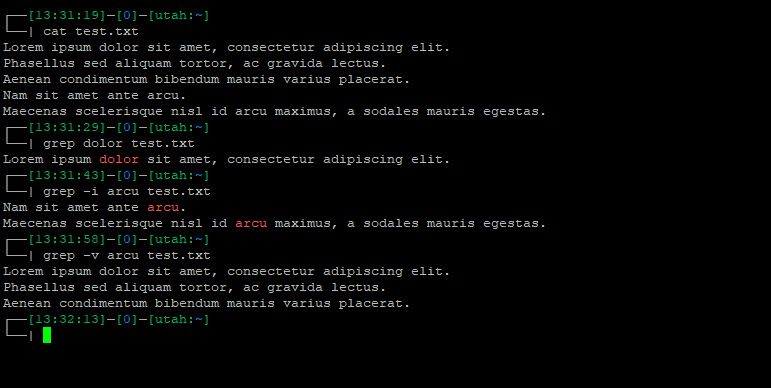
The grep command is one of the most powerful and commonly used tools in the Linux command-line environment. It allows users to search for specific patterns within files or output streams. Whether you’re a system administrator, developer, or data analyst, mastering grep can significantly improve your efficiency.
What is grep?
The name grep stands for “Global Regular Expression Print.” It searches through files for lines that match a given pattern and prints the matching lines to the terminal. It is useful for searching log files, filtering output, and much more.
Basic Syntax
grep [OPTIONS] PATTERN [FILE...]PATTERNis the text or regular expression you want to search for.FILEis the file or list of files you want to search in.OPTIONSmodify the behavior ofgrep.
Common Use Cases and Examples
1. Searching for a Specific Word
To find all occurrences of “error” in a file named logfile.txt, use:
grep "error" logfile.txtThis will display all lines containing the word “error”.
2. Case-Insensitive Search
To ignore case sensitivity, use the -i option:
grep -i "error" logfile.txtThis will match “Error”, “ERROR”, and “error” alike.
3. Searching Recursively in Directories
To search for a pattern in all files within a directory and its subdirectories, use -r:
grep -r "error" /var/log/This is useful when analyzing logs in multiple files.
4. Displaying Line Numbers
To include line numbers in the output, use -n:
grep -n "error" logfile.txtThis helps identify exactly where the match is located in the file.
5. Inverting the Search (Show Non-Matching Lines)
To display lines that do not match the search pattern, use -v:
grep -v "error" logfile.txtThis can be useful when filtering out unwanted data.
6. Using Regular Expressions
grep supports regular expressions for more advanced searching. For example:
- Match lines that start with “error”:
grep "^error" logfile.txt - Match lines that end with “failed”:
grep "failed$" logfile.txt - Match lines containing a digit:
grep "[0-9]" logfile.txt
7. Counting Matches
To count the number of matching lines, use -c:
grep -c "error" logfile.txtThis prints the number of lines containing “error”.
8. Highlighting Matches
Most modern implementations of grep highlight matching text automatically. However, you can enforce highlighting using:
grep --color=auto "error" logfile.txt9. Searching for Multiple Patterns
Use the -e option to search for multiple patterns:
grep -e "error" -e "warning" logfile.txtThis finds both “error” and “warning” in the file.
10. Combining grep with Other Commands
grep is often used with pipes (|) to filter command output. For example:
dmesg | grep "USB"This filters kernel messages to show only USB-related logs.
Conclusion
The grep command is an essential tool for searching text efficiently in Linux. With its various options and the power of regular expressions, it becomes an indispensable part of any Linux user’s toolkit. Whether you need simple searches or complex filtering, grep can handle it all.
Start using grep today to streamline your workflow and make text searching faster and more effective!